

Description
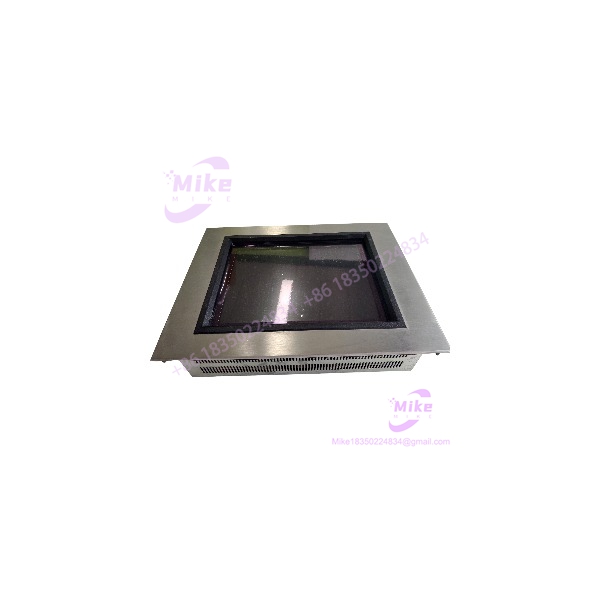
Micro Innovation GF1-10TVD-000 | 10.4″ Industrial HMI Panel
Product Introduction
The Micro Innovation GF1-10TVD-000 belongs to the older GF-1 Micro Panel platform, where the HMI is only one part of the control-system interface. The actual automation connection is handled through the installed communication module, while the operator project is stored on an external PC Card. That architecture matters when replacing a failed panel: changing the screen hardware without recovering the original project and communication hardware can leave you with a powered-up display that still cannot communicate with the PLC or controller.
The documented GF1-10TVD version uses a 10.4-inch TFT LCD color display with 640 × 480 VGA resolution and isolated 24 VDC power. Micro Innovation’s documentation also identifies GALILEO as the design software for GF-1 projects and specifies two slots for communication modules or system expansions.
For legacy machinery, this is primarily a replacement and migration-control component, not a generic modern touchscreen substitute. The correct project file, PC Card, communication module, wiring, mounting arrangement, and firmware/software environment should all be checked before commissioning.
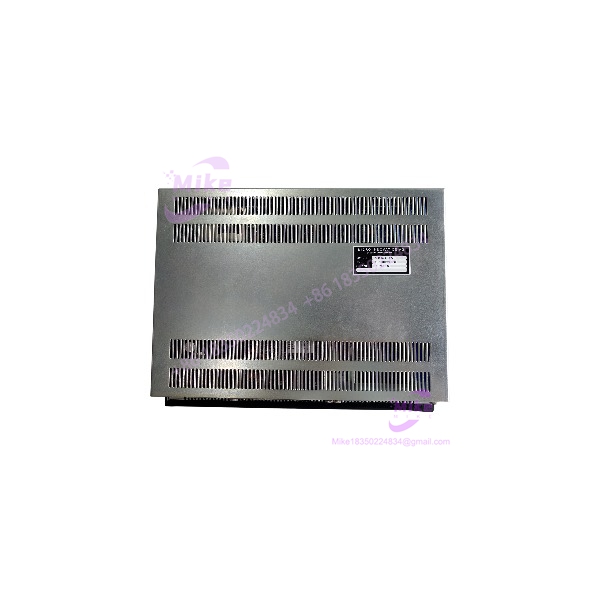
GF1-10TVD-000
Key Technical Specifications
- Model: GF1-10TVD-000
- Series: Micro Panel GF-1
- Display Size: 10.4 inches / 264 mm
- Display Technology: TFT LCD color
- Display Resolution: VGA, 640 × 480 pixels
- Supply Voltage: 24 VDC
- Supply Type: Isolated DC supply
- Operator Interface: Touch-zone functions
- Project Engineering Software: GALILEO
- Project Storage: External plug-in PC Card
- Communication Expansion: Two slots for communication modules or system expansions
- Mounting: Front-panel enclosure/cabinet mounting; the documented xx0 mounting style uses four front fixing holes
- Environmental Protection: IP65 when correctly installed and sealed
- Maximum Ambient Temperature: 50°C under the documented operating conditions
- Cooling: Keep the cooling slots unobstructed; the documentation specifies clearance around the housing for air circulation
- DC Connector: 3-pole plug-in screw terminal for the GF1-xxxxD version
The exact communication protocol is not safely determined from the GF1-10TVD-000 base model alone. The GF-1 architecture uses separate communication modules, so the installed communication card must be identified before claiming a specific PLC network such as PROFIBUS, CAN, or another fieldbus.
Global Sourcing & Live-Test SOP
For a used or surplus GF1-10TVD-000, visual inspection is not enough. Treat the unit as a configuration-dependent automation component.
1. Inbound Verification
- Photograph the complete nameplate before removing packaging.
- Confirm GF1-10TVD-000 rather than GF1-10TVA or GF1-10TVB.
- Verify the supply designation: the documented TVD version is the isolated 24 VDC variant.
- Inspect the front glass, touch area, bezel, mounting holes, and rear cooling openings.
- Check the PC Card retaining hardware and system-slot covers.
- Record serial number, hardware revision, and any installed communication module.
- Inspect connectors for bent contacts, oxidation, cracked housings, or evidence of previous field repair.
- For imported surplus equipment, retain available OEM paperwork and serial documentation for traceability.
2. Power-Up and Functional Simulation
- Use a controlled 24 VDC supply with current monitoring.
- Confirm correct polarity before energizing.
- Check startup behavior and display initialization.
- Verify touch-zone response across the usable screen area.
- Inspect the display for dead areas, abnormal contrast, flicker, or intermittent illumination.
- Check front-panel indicators and operator controls where fitted.
- Verify the PC Card interface where the original project media is available.
- Confirm communication-module presence and physical condition.
3. Communication Diagnostics
A replacement should not be declared system-ready merely because the display turns on.
- Identify the installed communication module.
- Compare its part number with the machine’s original configuration.
- Load the correct project through the documented GALILEO workflow where the project is available.
- Verify controller handshake and variable exchange.
- Check alarm/status tags rather than testing only a static screen.
- Where appropriate, use a Fluke meter to verify the 24 VDC supply at the HMI terminals under load.
- Record communication faults and startup diagnostics before shipment.
4. Extended Heat Run
For a tested unit, perform an extended powered run appropriate to the application, preferably including repeated screen navigation and communication activity.
Monitor:
- Display stability
- Touch response
- Power-supply behavior
- Communication stability
- Unexpected resets
- Backlight degradation
- Excessive housing temperature
Record the test date, applied supply voltage, installed communication module, project/firmware information, and observed fault history.
5. Final Preparation
Before shipment, preserve the customer’s original configuration whenever supplied.
- Record project version.
- Record GALILEO project information where available.
- Photograph installed communication cards.
- Record hardware revision and serial number.
- Protect the touch surface against impact.
- Use ESD-safe packaging for the electronic assembly.
- Do not erase or overwrite customer-supplied PC Card/project media unless specifically authorized.
Field Engineer’s Pitfall Guide
❗ Firmware/project mismatch can look like a hardware failure
The GF-1 requires the appropriate project data before it can perform its intended visualization function. Micro Innovation documentation specifically states that project data is stored on the external PC Card and created using GALILEO. A replacement panel with no matching project should therefore not be represented as plug-and-play.
❗ Do not substitute the display variant by appearance
The GF-1 family includes different electrical versions. The documented GF1-10TVD uses 24 VDC isolated power, while GF1-10TVB is also 24 VDC but non-isolated, and GF1-10TVA is an AC version. Verify the complete model designation before connecting power.
❗ The communication module is part of the migration strategy
The base does not by itself establish which industrial protocol the machine uses. Communication is handled through the GF-1’s communication-module architecture. Do not assume that a physically similar GF-1 panel contains the same network interface as the original unit.
Intent-Driven FAQ
Is the Micrion an HMI or a PLC?
It is an industrial HMI/operator interface, not a standalone PLC CPU. Its role is visualization and operator interaction with the underlying automation system.
What resolutthe use?
The documented version uses a 10.4-inch TFT LCD color display at 640 × 480 VGA resolution.
What power supthe require?
The TVD version is specified for 24 VDC isolated power. Use the actual nameplate and wiring documentation when commissioning a specific unit rather than assuming compatibility from the GF-1 family name alone.
the include the PLC communication protocol?
Not necessarily. The GF-1 platform uses separate communication modules/system expansion slots. The installed module must be identified to determine the actual network interface and controller compatibility.
Can Ithe without the original project?
Physically powering the HMI is possible, but it is not equivalent to restoring the machine. The GF-1 documentation states that the appropriate project data must be loaded before use, with project storage on an external PC Card and engineering through GALILEO.
the hot-swappable?
Do not assume it is. Treat replacement as a power-off maintenance operation unless the specific machine documentation provides a documented live-replacement procedure. Disconnecting an HMI from an energized control cabinet can also affect the connected communication network.
the obsolete?
The GF-1 platform is a legacy Micro Innovation product family, and current surplus-market records list variants as used/on-request components. Availability therefore depends heavily on surplus inventory and tested condition.
What should be checked before buying a replacement?
At minimum, match , display size/resolution, 24 VDC electrical version, mounting configuration, installed communication module, project/PC Card arrangement, hardware revision, and connector condition. For a production machine, those details matter more than simply finding another GF-1 panel.
Bottom Line for Buyers
The Micrion is a legacy 10.4-inch industrial touch HMI with 640 × 480 VGA resolution and isolated 24 VDC supply. Its real replacement value depends on the surrounding GF-1 configuration—particularly the communication module and GALILEO project data.
For procurement, specify the ete model number, request clear photos of the nameplate and rear assembly, and confirm whether the original PC Card/project and communication module are included. That verification step can prevent a physically compatible HMI from becoming an expensive non-functional spare.